

Introduction
Welcome to the Fall 2025 semester! Information Technology (IT) has made some changes during the summer semester. Take a moment to familiarize yourself with changes you may encounter and some announcements you may have missed.
Reminders
Status Updates
Curious about whether a service or system is experiencing an issue? Review status.ggc.edu.
MyCourses Workshops
IT has scheduled online workshops for MyCourses features and integrated technologies. Check the GGC Events Calendar for dates and times!
Help Desk Single Point of Contact
The Help Desk is the central point of contact for all technology support requests. This includes but is not limited to password assistance, email delivery, MyCourses assistance, classroom technology support, and event technology support. To contact the Help Desk:
Email: helpdesk@ggc.edu
Web: helpdesk.ggc.edu
Phone: 678-407-5611
Location: A-1040. Help Desk hours are posted on the IT Services Help Desk page.
IT will never request your password or sensitive information via email, online form, text, or phone call.
Updated Services and Software
Schedule Your Windows 11 Upgrade
Microsoft’s Windows 10 has reached the end of its life cycle, meaning Microsoft is no longer offering the software as its primary OS and the default OS for any standard support. IT is in the process of migrating from offering Windows 10 to offering Windows 11 because of this change. You can view our What’s New with the Windows 11 Update? blog to learn more about the change in features from Windows 10 to Windows 11. Additionally, you can view our Microsoft page to learn more about other offerings from Microsoft.
Please bring your laptop(s) to the Help Desk in Building A, Room 1040, for your upgrade. No appointment or invitation is needed to get upgraded to Windows 11. Microsoft ends support for Windows 10 on October 14, 2025, so beat the fall rush and ensure your device stays up to date and secure.
New Syllabus Solution
IT introduces Simple Syllabus as GGC’s new syllabus repository solution. Simple Syllabus makes course syllabi accessible to all Georgia Gwinnett College students and the public. Integrated directly with MyCourses, Simple Syllabus allows faculty to quickly edit and publish course syllabi, ensuring consistent and up-to-date course information.
Visit MyCourses Central – Publish your Syllabus for resources on using Simple Syllabus.
Please check the GGC Event Calendar for Simple Syllabus training opportunities.
MyCourses: New Content Experience
IT launched a pilot of the New Content Experience (NCE) in MyCourses at the beginning of the Summer 2025 semester. NCE is an updated interface for the Content section in MyCourses that was developed to bring a more streamlined approach to presenting content to students.
IT is currently exploring NCE and seeking feedback from faculty and students. A multi-semester review has been planned for NCE, during which IT will test, evaluate, gather feedback, and engage with various stakeholders across campus before making the final decision to make NCE the default experience.
Information Sessions will be hosted by IT throughout the Fall 2025 semester. If you’d like to test out NCE in a Sandbox course or Building Section, please submit the MyCourses: NCE Request form.
New Kaltura Player Version Available
IT has upgraded our Kaltura video players to the most current version, “V7.” The Kaltura V7 player was designed with improved accessibility and viewing quality in mind. You will notice the new player anywhere where your Kaltura videos are currently published, inside and outside of MyCourses.
Please take a moment to compare the old Kaltura video player to the new player and familiarize yourself with the changes.
The most notable change is the availability of transcripts inside the player’s user interface. When viewing a video, you will see the transcript icon in the top right-hand corner of the player. Clicking the transcript icon will display the transcript in a panel on the right side of the video.


Viewers also have the option to download or print the transcript from the player.
Barnes & Noble Integration Update
IT has updated the Barnes & Noble integration in MyCourses to LTI 1.3. Please use the default course navigator bar in your courses to ensure access to the updated Course Materials links.
New Respondus Lockdown Browser Features
MS Excel can now be used during exams
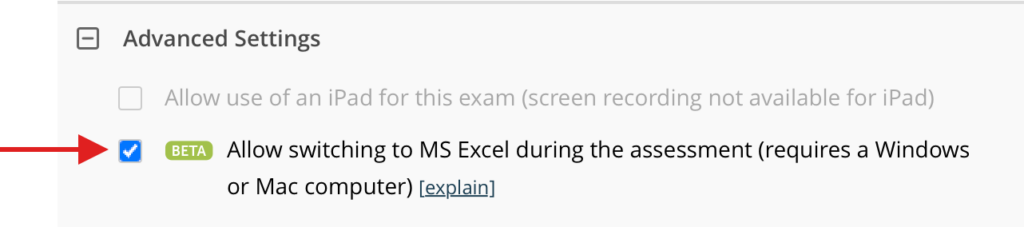
Respondus Monitor now supports switching to MS Excel during an online exam. To enable, expand the Advanced Settings section in the Lockdown Browser exam settings.
What to Know
- A new instructor setting for Respondus Monitor enables students to switch between an online exam and Excel.
- Screen Recording is required since the Excel environment is not locked down.
- The timeline for the proctoring results shows when Excel is used with corresponding video.
Notes:
- This option is not available for the iPad or Chromebook version of LockDown Browser.
- Excel for Web isn’t supported.
- The standard version of LockDown Browser (the one installed by students) will be updated at startup if the version doesn’t support the Excel feature.
- If using managed devices (e.g., testing centers), the LockDown Browser version must be 2.1.3.02 (Windows) or 2.1.3.03 (macOS) or higher.
- If an exam previously used the built-in spreadsheet tool for LockDown Browser, follow these instructions to change it to Excel.
- A practice test that uses Excel is highly recommended.
New handheld device flag for Respondus Monitor
Respondus Monitor now alerts instructors when a device is detected in a student’s hand during an online exam.
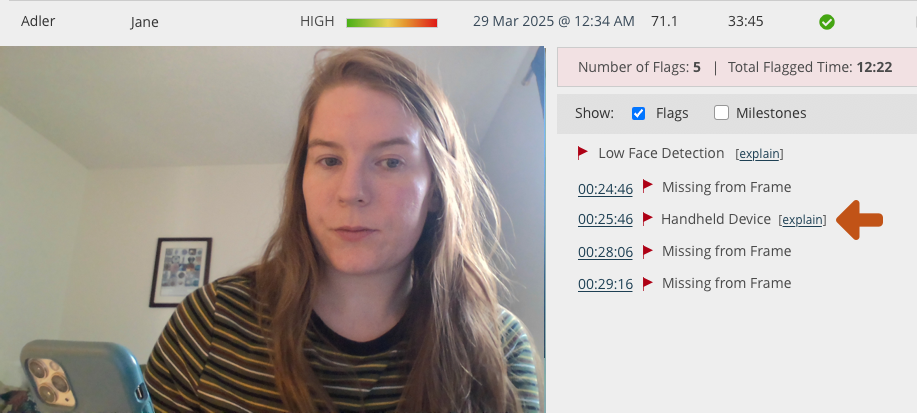
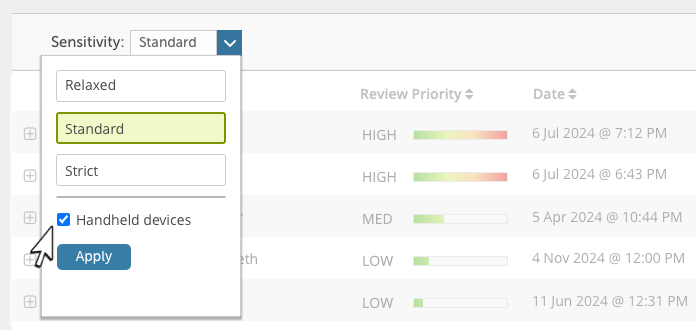
Flagging of handheld devices occurs automatically in Respondus Monitor. But in situations where an instructor wants to exclude this flag from proctoring results (such as math exams where calculators are permitted), it is easily adjusted after the assessment. Simply select the “Sensitivity” dropdown, uncheck Handheld devices, and then Apply. The Handheld Device flags are then removed from proctoring results and the Review Priority scores are updated for the class.
Handheld device detection works with both frontal and side-positioned webcams. The system is trained to identify a device even when only a small part is visible in the video.
Available Software Resources
GGC students, faculty, and staff have access to the following software:
- Adobe Express
- Microsoft 365
- MSTeams Softphone
- LinkedIn Learning
Please visit the Software and Online Services page for more information.
Classroom Technology
General Classroom Laptop Carts
Laptops in laptop carts have been updated to Windows 11 over the summer.
Faculty, staff, and students using classroom laptop carts must remember the following:
- Laptop carts may not be moved to another location. Each cart is assigned to a specific classroom and must remain there unless approved for relocation by Space Management.
- Laptops associated with carts may not be removed from a classroom. Students may request to check out a laptop from the Help Desk. Students may also use the open computer labs.
- Laptops must be stored in carts and plugged in after each use.
- Laptop carts must be locked after each class session.
- Laptop carts must be plugged in.
- IT will conduct bi-weekly inventory checks on laptop carts.
- Issues with laptops and/or carts should be reported to the Help Desk: helpdesk@ggc.edu
IT offers laptop carts for checkout if needed.
Summer Upgrades in 19 Classrooms
Beginning in Spring 2025, IT began using a new style of lectern and audio-visual cabinet. The lectern is ADA-compliant with height adjustment capabilities. The lectern includes a single touch-enabled monitor. A dual monitor experience can be achieved when a laptop is connected with the available HDMI cable. The touch-enabled monitor, when combined with Ink2Go, allows for screen annotation.
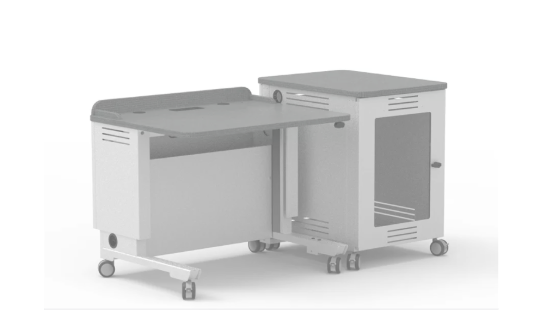
Additionally, the audio-visual cabinet will be separate from the lectern to allow for easier repairs and equipment replacement. This cabinet will be available in “standard classrooms”.
IT has also updated the controls used to turn on the classroom technology, switch sources between in-room PC, HDMI, and document camera. Rather than the touchscreen device, you will now use this new controller to switch between sources and control the volume of the speakers.
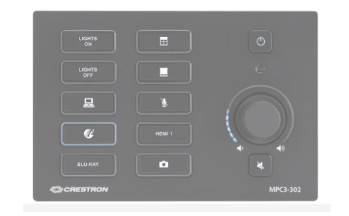
Please note that the equipment in the audio-visual equipment cabinet will be secured and will no longer be directly accessible. The in-room PC will continue to be available to faculty.
If you require assistance with using your classroom technology, please request a consultation.
The “standard classroom” includes:
- An ADA-compliant lectern
- A single touch-enabled monitor
- A projector
- Ceiling-mounted speakers
- An in-room computer with the Windows operating system (OS)
- A DVD drive
- An HDMI input (used to connect laptops and other devices)
- A document camera
- The ability to present wirelessly (AirMedia)
- A webcam with integrated microphone
- A control system for switching content sources
The following 19 classrooms were upgraded to this “standard classroom” design during Summer 2025:
- B-1200
- B-1650
- B-1660
- B-1900
- B-1950
- B-2100
- B-2200
- B-2750
- B-2800
- B-2950
- C-1110
- C-1125
- C-1135
- C-1220
- C-2105
- C-2115
- C-2125
- C-2130
- C-2220
Whiteboard / Multipurpose board replacements
Classrooms are outfitted with whiteboards or multipurpose surfaces for projection and instruction. IT continued to replace these surfaces in Building B due to wear and tear.
Classrooms where whiteboards or multipurpose surfaces were replaced during Summer 2025 are as follows:
- B-1200
- B-1650
- B-1660
- B-1900
- B-1950
- B-2100
- B-2200
- B-2750
- B-2800
- B-2950
Need Help?
Contact the GGC Help Desk
Email: helpdesk@ggc.edu | Web: helpdesk.ggc.edu | Phone: 678-407-5611
Check status.ggc.edu for system and services availability.
Learn more in IT Workshops – OR- Schedule a 1-1 Consultation
TABLE OF CONTENTS