
New updates are coming to MyCourses on Friday, August 29! See below for details, and please contact helpdesk@ggc.edu if you encounter any problems or have questions.
MyCourses
MyCourses – Improved screen reader accessibility for some tabs and pages | Updated
To enhance accessibility, screen reader and assistive technology support has now improved for the Print Quiz tab page in MyCourses. The changes clarify the content structure and tab navigation cues for screen readers. There are no visible changes to the interface.
MyCourses – New Window icon for all menu items | Updated
To help users better anticipate navigation behavior in MyCourses, a  New Window icon now appears next to all menu items that open in a new tab or window. This change applies to all applicable menu items across the platform interface.
The icon design is also updated to better align with current styles used in MyCourses.
View an example of this change in the Print Thread menu in a discussion topic (see image).
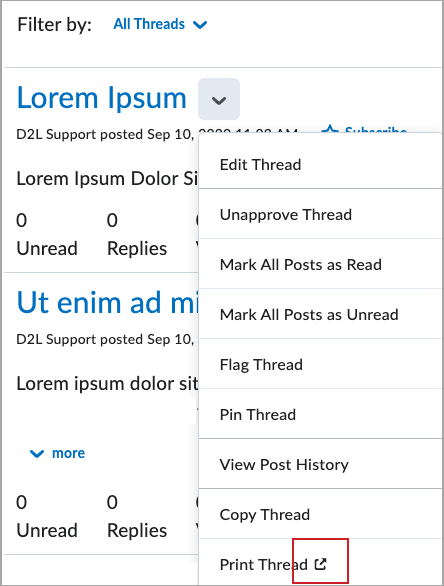
From a course, navigate to a topic in Discussions, select the actions drop-down for a thread, then view the New Window icon appears beside Print Thread.
Groups – Enrollment limit increase | New
To support growing class sizes, the Groups tool now allows enrollment of up to 3000 users per group within a group category. Previously, the limit was 200 users per group.
This increased limit applies to all enrollment workflows, including:
- Automatic enrollment during group creation
- Automatic enrollment during Classlist enrollment, where automatic enrollment group types exist
- Manual enrollment using the Enroll Users and Import options within the Groups tool
- Groups enrollment via the Bulk User Management tool
- Enrollment using MyCourses APIs
The 3000-user limit is now strictly enforced across all methods of group enrollment. Previous workarounds that bypassed the former enrollment limit will no longer function for any group that has reached the 3000-user limit.
Currently, the automatic enrollment overflow functionality enrolls users into other groups in the same category if the selected group is full. However, when the 3000-user limit is reached in all groups, further enrollment attempts will fail. To continue processing enrollments, you must add additional groups to the category.
In cases where enrollment fails due to the user limit, the following indications appear:
- MyCourses APIs return an error
- Bulk User Management and Group Import CSV display user-specific errors in the import results
- IPSIS and Banner integrations report failures
- In the Groups tool, additional users cannot be selected without deselecting users already enrolled in the group
Quizzes – Print your quiz | New
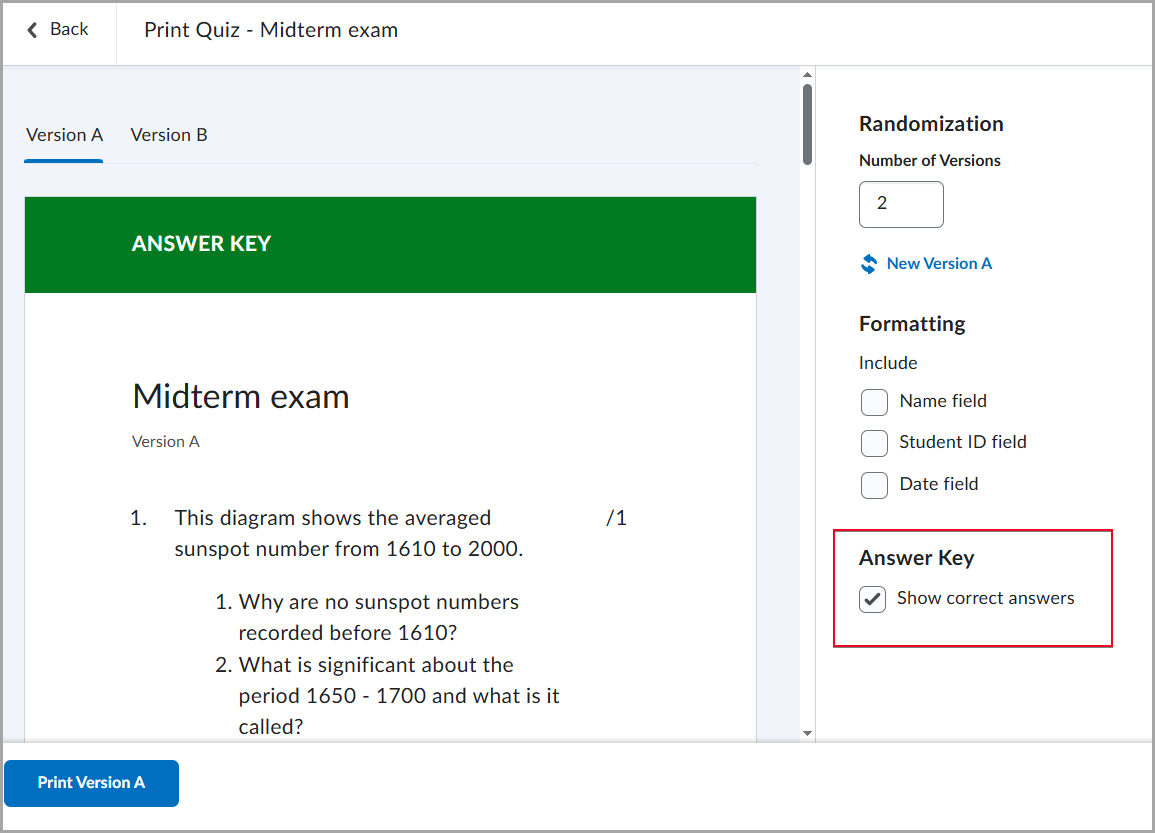
In response to customer feedback, this update provides instructors with a simple way to print an offline quiz that supports all native MyCourses quiz question types, shuffling and randomization options, question pools, multiple versions, and an Answer Key.


Options to support multiple quiz versions include:
- Shuffle Quiz (under Timing & Display) to shuffle quiz sections and questions.

Figure: In the Timing & Display section of the quiz settings, select Shuffle Quiz to randomize the order of questions and sections within the quiz. - Shuffle questions in this section (when creating or editing a section).

Figure: When creating or editing a quiz section, select Shuffle questions in this section to randomize questions, sections, and pools within the section. - Randomize answer order when creating or editing a supported question type, for example, Multiple Choice.

Figure: When creating a multiple-choice question, select Randomize answer order to present answer choices in a different order for each learner.
To help instructors quickly and easily grade printed quizzes taken offline, an Answer Key is provided for each version. It includes the correct answers and, where applicable, the grading method.
Need to learn more?
Need to learn more about MyCourses, Zoom, Microsoft software, Accessibility, or Classroom Technology?
Check the IT Workshop Schedule – OR- Schedule a 1-1 Consultation