Best Practices

Digital Content Accessibility: Multimedia

Accessibility Tips: Dos and Don’ts for Alternative Text

Alternative text, also known as alt text, describes the content and purpose of an image, chart, or graph for people who have visual impairments or use screen reading technologies.  All images, charts, and graphs require some form of alt text. The alt text should provide the information a person needs to know about the image, chart, or graph […]

Accessibility Tips: Dos and Don’ts for Alternative Text Read More »
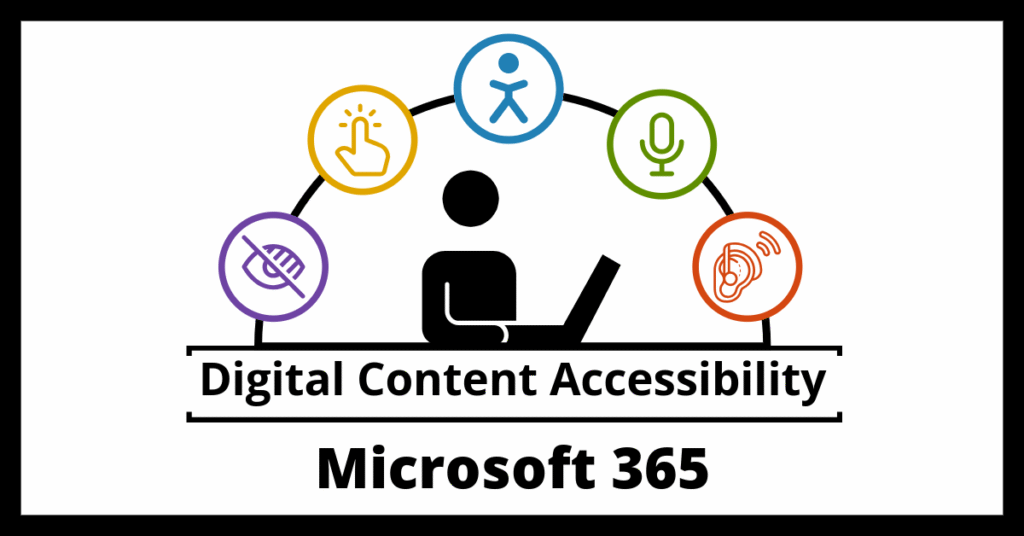
Digital Content Accessibility: Microsoft 365

Microsoft Office Accessibility Tips

During Fall 2025, Panorama identified common accessibility issues found in Microsoft Word documents, PowerPoint presentations, and Excel spreadsheets used in MyCourses courses.  Many of these issues can be identified and corrected by using Microsoft’s Accessibility Checker prior to adding content to MyCourses.  The following digital accessibility concerns fall under three major categories: color, multimedia, and structure.  Common Accessibility Concerns with Microsoft Content Color Color Used

Microsoft Office Accessibility Tips Read More »

Green thumbnail image with text "Best Practices: OneDrive vs. Teams/SharePoint"

Best Practices: OneDrive vs. Teams/SharePoint

Microsoft 365’s OneDrive and SharePoint applications have commonly confused functions and features. While both are integrated with other Microsoft 365 applications like Word, PowerPoint, and Excel, the document access permissions are distinct. They also have very different interfaces and customization options. Most importantly, they each have different use cases. By leveraging the strengths of both

Best Practices: OneDrive vs. Teams/SharePoint Read More »

Low poly cartoon hand holding phone that says "Before You Log Off" over a background of low poly snow and trees

Before You Log Off: Key Reminders for Closing Out Fall 2025

Introduction As we approach the end of the Fall 2025 semester, Information Technology (IT) has reminders and best practice recommendations to ensure a smooth transition into our next semester. Reminders Return IT Assets Please return any borrowed IT assets such as laptops, microphones, projectors, etc., to the Help Desk.  If you are retiring or separating

Before You Log Off: Key Reminders for Closing Out Fall 2025 Read More »

Improving Digital Content Accessibility in MyCourses thumbnail

Improving Digital Content Accessibility in MyCourses

As you prepare your MyCourses courses for the spring semester, please review the Panorama Course Report to identify accessibility issues and implement fixes for webpages (HTML), Word documents, PowerPoint presentations, PDF files, and Excel spreadsheets. The example course report shown below indicates that the overall accessibility score for digital content in this course is 73%.

Improving Digital Content Accessibility in MyCourses Read More »

Academic Technology updates for December

Academic Technology Updates for December 2024

New updates are coming to MyCourses and GoVIEW! See below for details, and please contact helpdesk@ggc.edu if you encounter any problems or have questions. MyCourses Ally to Panorama Transition GGC will transition from Anthology (formerly Blackboard) Ally to YuJa Panorama as the primary digital accessibility solution. Information Technology (IT) will disable Ally on December 19, 2024. Please

Academic Technology Updates for December 2024 Read More »

MyCourses Digital Content Accessibility Features

Information Technology (IT) has licensed a new digital accessibility tool called YuJa Panorama that is integrated with MyCourses! What is Panorama? Panorama is a tool that improves the accessibility of digital media and course content. It scans, inspects, and converts files to various formats for download, scores the overall accessibility of a course, and offers remediation guidance

MyCourses Digital Content Accessibility Features Read More »