
Accessibility is often associated with content creation and remediation. Those practices do matter, but some of the most significant barriers students of all kinds encounter come from unclear communication.
Students should not have to guess where a link leads, what they need to do next, or which resource contains the information they need. When instructions are vague or course materials are difficult to locate, students spend more time navigating the course than engaging with the materials.
Clear communication supports accessibility because it helps students understand what is expected and how to move forward. It also supports usability: a course is easier to use when directions, links, and resources are organized in a predictable way.
Reduce Unnecessary Barriers
Instructions do not need to be lengthy to be useful. They need to give students the information required to complete a task successfully.
For each assignment or activity, consider whether students can quickly identify:
- What they need to do.
- Which materials or resources they need.
- Where they should complete or submit the work.
- When the work is due.
- How they will know they have completed the task.
When this information is spread across several announcements, files, or pages, students may miss an important step. Bringing the details together in one clear location can reduce confusion.
Use Descriptive Links
Link text should tell students what they will find before they click it. Phrases such as “click here” or “more information” may make sense visually when they are surrounded by context, but they do not always provide enough information on their own.
Instead of:
Click here.
Consider:
Module 2 Assignment Instructions.
Note: The previous content does not contain actual links, just the appearance of links for demonstrative purposes.
The second example tells students what the link contains and why it matters. Descriptive links also make it easier for students using screen readers to scan links on a page and locate the resources they need.
Organize Information and Steps Clearly
Lists can help students distinguish between information, required materials, and steps in a process. When order matters, use a numbered list. When items can be completed in any order, use a bulleted list.
Unclear Instructions:
Complete the assignment using the previously distributed materials according to supplemental guidance.
Clearer Instructions:
- Read the Module 2 article.
- Use the article to complete the assignment.
- Submit your work in the Module 2 Assignment folder by Friday.
The goal is not to simplify academic rigor. It is to remove unnecessary obstacles that interfere with learning. Students can focus more fully on course content when they understand what to do and where to find what they need.
Review Content from the Student’s Perspective
Accessibility tools can identify some formatting concerns, but they cannot determine whether directions make sense to a student encountering them for the first time. A quick human review can help identify gaps.
Before publishing content, ask:
- Would a student know what to do next?
- Does each link describe its destination or purpose?
- Are the steps presented in the order students need them?
- Are required materials and deadlines easy to find?
- Is the same type of information organized consistently across the course?
These questions shift the focus from whether instructions exist to whether students can successfully use them.
Reminder
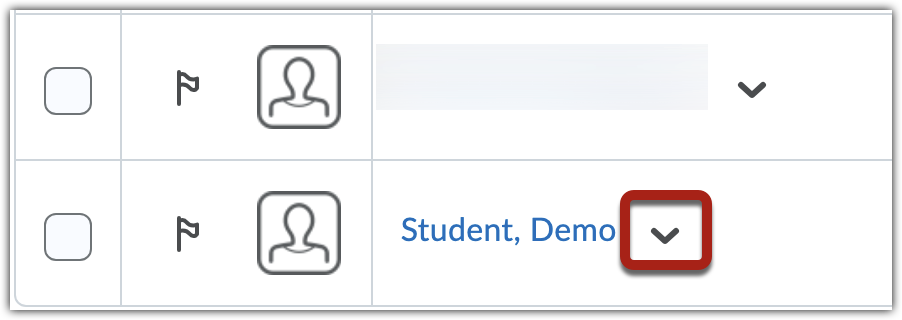
Instructors can impersonate demo students in their courses to preview content as it appears to students.
Faculty Takeaway
Clear instructions, descriptive links, and well-structured lists support all students. Use technology to identify technical concerns but also review course content from the student’s perspective. The goal is not simply to provide directions. The goal is to ensure students can understand them, find the resources they need, and focus on learning.
Workshops and Resources
Related Workshop
Designing Accessible Course Content will be held online on Wednesday, October 28, 2026, from 10 – 11 a.m.
For more information, see upcoming accessibility workshops on the GGC Events calendar.
Resources
- Accessibility Resources
- MyCourses: Impersonate Your Demo Student
- Section508.gov
Other Posts in Series
Post 1: Accessibility Scores Only Tell Part of the Story
Post 2: Alt Text Goes Beyond Checking a Box
Post 3: Captions Matter More Than You Think
Post 4: Clear Instructions Create Accessible Learning
Need to learn more?
Need to learn more about MyCourses, Zoom, Microsoft software, Accessibility, or Classroom Technology?
Check the IT Workshop Schedule – OR- Schedule a 1-1 Consultation