
New updates are coming to MyCourses this month! See below for details, and please contact helpdesk@ggc.edu if you encounter any problems or have questions.
IMPORTANT: MyCourses content and data removal – June 16, 2025
In accordance with the University System of Georgia approved policy on learning management system data and content retention, please review the course retention report. Generally, any course from December 2019 or earlier will appear in the report. The courses included in the report are scheduled for removal beginning June 16, 2025. Please review the list carefully.
Faculty are responsible for archiving content and data and ensuring any data required for accreditation or research activities is preserved.
Content or videos hosted by third party services, such as Kaltura, Turnitin, and Zoom, integrated with MyCourses are not subject to removal under the MyCourses data and content retention policy. However, content and videos hosted in third party services are subject to the retention and storage policies of these services.
Faculty must take action to archive MyCourses content and data prior to June 16, 2025.
Grades, assignment submissions, quiz results, and discussion posts that are archived and downloaded are considered FERPA protected data. As such, this data should be managed as described in APM 10.9 Student Education Records Management and FERPA Policy.
MyCourses
Assignments – Update to assignment annotations software version | New
With this release, the software that powers annotations in the Assignments tool is updated to the latest version, Nutrient 1.0.0 (formerly called PSPDFKit).
This version update resolves the following defects:
- WCAG/A11y layout issues in the Layout tool are now resolved. Previously, the options were not read by the NVDA screen reader.
- Cursor behavior now works as expected. Previously, the cursor would return to the start when typing notes in Assignment Annotations.
- All formatted annotation text in text boxes now saves correctly. Previously, italicized and bold text elements would not save.
- The annotations software no longer crashes on iPad OS versions 16 and below.
Additionally, minor UI updates are introduced in Nutrient 1.0.0. In the previous version of PSPDFKit, the following buttons displayed tooltips when hovering with a cursor:
- Next Page
- Previous Page
- Page Mode buttons
- Page Transition buttons
- Page Rotation buttons
The previous version also highlighted the Search button when clicked.
Now, in Nutrient 1.0.0, the buttons tooltips are removed, and the Search button no longer highlights when selected.


Assignments and Discussions – Bulk feedback for instructors | New
This feature enables instructors to provide bulk feedback to students directly within the Assignments and Discussions submission pages, enhancing efficiency and user experience.
Key capabilities:
- Add and save bulk feedback as a draft if none exists.
- Update existing drafts or published evaluations for multiple students simultaneously.
- Apply feedback to selected students using Add Feedback or to all students using Add Feedback to All.
- Display a warning message when saving an empty Feedback dialog as bulk feedback, as this action overwrites existing drafts or published evaluations.
Note:
Due to how Quizzes records attempts and completion summaries, bulk feedback is not supported for Quizzes. The Grid View in Discussions does not support bulk feedback.
File Attachments with Bulk Feedback
When using bulk feedback in Assignments or Discussions:
- Brightspace Editor includes the Insert Stuff functionality but does not support file uploads from My Computer. Instructors can insert links to YouTube videos or other external resources. These links are stored in Manage Files.
- Insert Image supports image file uploads from My Computer and the system stores them in Manage Files.


Grades – Access Quiz Feedback | New
This new feature allows students to quickly access quiz attempt feedback from the Grades page.

Previously, students could view quiz attempt feedback only in the Quizzes tool, depending on how the instructor configured the review process. This option remains available.

New Content Experience – Improved navigation between content topics | Updated
With this release, New Content Experience (Lessons) now includes navigation buttons for easier movement between content topics. Instructors and students can now use these buttons to move sequentially between topics in the course content structure, following the established sort order.

Previously, navigation buttons were only available in Classic Content Experience.
Quizzes – New Quiz Evaluation Experience transitioning to default, with opt-out until July 2025 | Updated
Originally released for the Quizzes tool in September 2024, this update now turns on the new Quiz Evaluation Experience by default for all instructors, promoting broader adoption while still allowing instructors to opt out until July 2025, at which time it will be made the default experience for all instructors.
This update streamlines the transition to the new Quiz Evaluation Experience, enhancing grading workflows and ensuring consistency while allowing instructors to adjust settings before the opt-out option is removed. Starting with the July 2025 release, all instructors will be automatically transitioned to the new experience, and the opt-out option will no longer be available.

Previously, administrators or instructors had to manually enable the new Quiz Evaluation Experience as an opt-in feature.

Respondus Monitor – Handheld Device Flag
Respondus Monitor now alerts instructors when a device is detected in a student’s hand during an online exam.
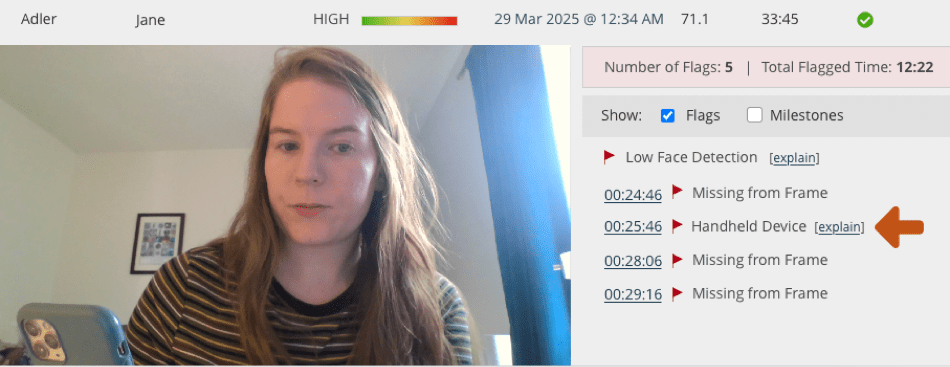
Flagging of handheld devices occurs automatically in Respondus Monitor. But in situations where an instructor wants to exclude this flag from proctoring results (such as math exams where calculators are permitted), it is easily adjusted after the assessment. Simply select the “Sensitivity” dropdown, uncheck Handheld devices, and then Apply. The Handheld Device flags are then removed from proctoring results, and the Review Priority scores are updated for the class.

Handheld device detection works with both frontal and side-positioned webcams. The system is trained to identify a device even when only a small part is visible in the video.
MS Teams Course Connector Update
Beginning Summer Semester 2025, Teams created with the MS Teams Course Connector in MyCourses will be automatically archived after the course ends. 61 days after the last day of classes, the Team will be automatically archived in MS Teams to help keep Teams accounts decluttered. The 61-day schedule adheres to our default course term padding, in which the course remains active for 60 days past the last day of classes. The term padding allows students to access their coursework and submissions following the end of the semester before losing access to the course completely after 60 days.
Instructors can access or restore an archived Team at any time.
MFA (Multi-Factor Authentication) for eCore
On May 12, 2025, eCore will enable multifactor authentication (MFA), sometimes referred to as two-factor authentication (2FA), for students logging into GoVIEW. MFA adds a second layer of protection to prevent unauthorized access to an account and protect it from cyber threats such as identity theft and malicious software. Please review eCore’s 2FA guide.
To learn more about MFA, visit our multifactor authentication page. Then, download our recommended multifactor authentication app, the Microsoft Authenticator, by visiting the mobile apps page.
Need to learn more?
Need to learn more about MyCourses, Zoom, Microsoft software, Accessibility, or Classroom Technology?
Check the IT Workshop Schedule – OR- Schedule a 1-1 Consultation