
Accessibility checkers available in Microsoft products and MyCourses may provide different recommendations for improving the accessibility of digital content. It is not uncommon for content to ‘pass’ the Microsoft Accessibility Checker and then have more accessibility issues identified by Panorama after being uploaded to MyCourses. Accessibility checkers are often built to serve different purposes which can impact the recommendations offered by the checker.
What are the most common accessibility checkers used at Georgia Gwinnett College?
Microsoft Accessibility Checker
Many of the Microsoft tools such as Word, PowerPoint, Excel, Outlook, and OneNote used at the college include an Accessibility Checker. An Accessibility Checker is available for the web versions of Microsoft tools available via Claw Mail and the desktop application versions available on Windows or Mac computers. The Accessibility Checker included with the desktop applications generally provides more information and options for correcting issues than the web version.
Access the Microsoft Accessibility Checker
Microsoft Accessibility Checker is available in Desktop and Web versions of Office applications.
- In Word, PowerPoint, or Excel, click on the Review tab, typically located on the left of the View tab.
- Depending on your toolbar/ribbon style, you will see one of the two available button appearances for the Accessibility Checker.
Note: The feature is available regardless of what Microsoft ribbon/toolbar is in use.
Single-Line Ribbon

Classic Ribbon

Panorama
Panorama is an accessibility checker integrated with MyCourses. Panorama checks common file types such as HTML (webpages), Word, PowerPoint, Excel, and PDF content in a MyCourses course. It provides instructors with recommendations, examples, and training for improving the accessibility of content hosted in MyCourses. Panorama can also generate alternate formats of content that can be used to improve accessibility. For example, Panorama can assist with creating accessible versions of scanned PDF files through the use of optical character recognition (OCR) alternative formats.
Please note that Panorama DocHub is available to employees and students outside of MyCourses and provides access to accessibility reports and alternative formats.
Access Panorama through MyCourses
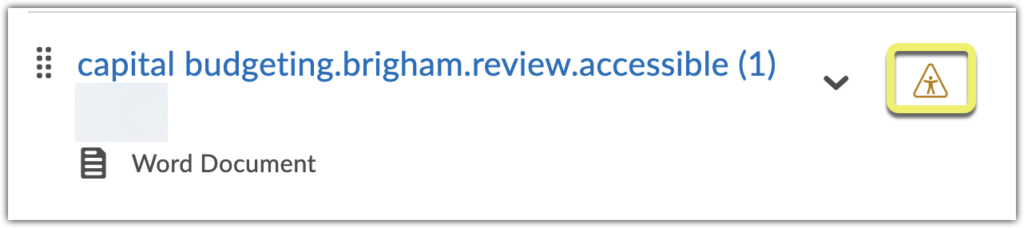
From MyCourses, Panorama is available for course documents like HTML files or uploaded Word, PowerPoint, and PDF files. Accessibility scores can be viewed by clicking on the Accessibility icon associated with course documents.
Access Panorama DocHub outside of MyCourses
Staff can access Panorama DocHub outside of MyCourses by logging in to the GGC Panorama Portal with their GGC account information. Review instructions for accessing DocHub outside of MyCourses.
Why do I get different results from different accessibility checkers?
Microsoft’s Accessibility Checker and Panorama use different standards and levels of review. Microsoft’s Accessibility Checker is a helpful first pass that looks for common accessibility issues while you are creating content. Panorama performs a more rigorous review based on WCAG 2.1 AA accessibility standards, which are used for ADA and Section 508 compliance. Because Panorama applies stricter criteria, it may identify issues that Microsoft’s Accessibility Checker does not.
Does this mean Microsoft’s Accessibility Checker is wrong?
No, Microsoft’s Accessibility Checker is working as designed. Microsoft states that the tool “finds most accessibility issues,” but it cannot detect everything and should be paired with visual review and other tools. Panorama is intended to be a second pass, not a replacement.
What kinds of issues does Panorama often catch that Microsoft may miss?
Panorama may flag issues such as:
- Reading order problems in PowerPoint slides.
- Heading structures that exist but are not logically organized.
- Nondescriptive link text (for example, “click here”).
- Font size or contrast issues that meet Microsoft’s rules but not WCAG standards.
- Accessibility problems introduced when files are converted to PDF or uploaded to MyCourses.
Why is Panorama considered a “harder grader”?
Panorama is designed to help the institution meet legal accessibility requirements and support student success. It evaluates content more strictly and in context (inside MyCourses), which is why it may report more issues than Microsoft’s tools.
Should I still use Microsoft’s Accessibility Checker?
Yes! Using Microsoft’s Accessibility Checker before uploading content is strongly recommended. It helps catch many common issues early and reduces the number of problems Panorama will later identify.
Is my content accessible if Microsoft and Panorama say it is good?
Not necessarily. Accessibility checkers are very good at finding technical, rule-based issues, but they cannot fully evaluate how real people experience content. Human reviews of content are necessary to improve accessibility and usability. Accessibility checkers can have issues with:
- Determining the quality of alternative (ALT) text.
- Evaluating context specific meaning such as:
- Link text that makes no sense out of context (“Click here”).
- Instructions that rely on visual cues (“See the box on the right”).
- Color used to convey meaning.
- Addressing clarity.
What is the recommended workflow for creating accessible content?
- Create content in Word, PowerPoint, or Excel.
- Run Microsoft’s Accessibility Checker and fix reported issues.
- Upload content to Panorama, through MyCourses for faculty or through DocHub for staff.
- Review Panorama’s findings and address any remaining issues.
- Perform a review to address accessibility and usability concerns not commonly identified by accessibility checkers.
Bottom Line
Not all accessibility checkers are created equal, nor do they identify all accessibility issues. Accessibility checkers are tools that should be used to assist with identification of issues. However, they should always be coupled with good judgement and best practice recommendations for accessibility and usability.
Upcoming Workshops
Visit the main GGC Events Calendar for upcoming accessibility workshops from IT, CTE, Kaufman Library, and other departments.
Resources
Need to learn more?
Need to learn more about MyCourses, Zoom, Microsoft software, Accessibility, or Classroom Technology?
Check the IT Workshop Schedule – OR- Schedule a 1-1 Consultation