
New updates are available for MyCourses! See below for details, and please contact helpdesk@ggc.edu if you encounter any problems or have questions.
MyCourses
Assignments — Annotation availability awareness enhancements in assignment creation | New
Annotations are only supported for File and File or Text Assignment Types. They are not supported for Text, Observed, or On Paper Assignment types. In response to requests from instructors for clearer indicators of which types of assignments support Annotations, we’ve enhanced the assignment creation experience with better tool tips, visual cues, and on-screen guidance.
New informational tool tip
To make it easier for instructors to understand what the Annotations tool does and which types of assignments you can use it with, a new informational tool tip now appears beside the existing Annotations check box in the interface for creating assignments.
When you hover over the new information ( ? ) button, a tool tip displays Annotation Tools help.
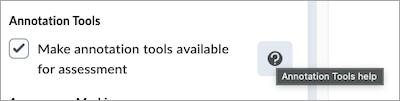
Clicking the information ( ? ) button opens a pop-up window that explains what the Annotations tool does, and which types of assignments you can use it with. The text in the new window is as follows:
| Information: Annotation Tools Use annotation tools to add feedback directly to the uploaded documents by highlighting, drawing, and commenting.This is available for file submissions only. |

Clear visual indicators make it easy to identify which assignment types support Annotations
To make it easier to immediately understand whether you can use Annotations on an assignment, the Annotations check box now appears disabled (grayed out) for non-file-type assignments, such as Text, Observed, or On Paper assignments.

Updated on-screen guidance
New on-screen guidance indicates when instructors can no longer enable Annotations for an assignment and why.
Guidance for non-file Assignment types
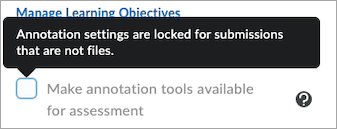
When you cannot enable Annotations for an assignment because the type is Text, On paper, or Observed in person, hovering over the Annotations check box displays the following message:
| Annotation settings are locked for submissions that are not files. |
Guidance displayed for assignments after submissions are received
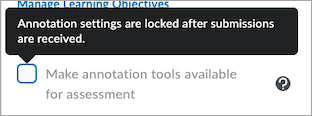
When you cannot enable Annotations for an assignment because students have already made submissions while the setting was disabled, hovering over the Annotations check box displays the following message:
| Annotation settings are locked after submissions are received. |
Assignments — Improved assignment type selection interface | Updated
A usability improvement makes it easier to select the correct assignment type when you create an assignment.
Previously, instructors used radio buttons to specify whether an assignment was for a Group or an Individual.
A new drop-down menu for selecting the Assignment Type modernizes the interface and lays the groundwork for future enhancements to the Assignments tool.

Grades – Comments and Assessments column always visible to students | Updated
Students can now always see the Comments and Assessments column in Grades, ensuring that feedback and links to assessments are consistently visible. The column is no longer conditionally displayed, supporting additional links from tools such as Rubrics, Assignments, and Quizzes.
This update supports future enhancements that add information to student feedback in Grades.
Previously, the column only appeared when a grade item included feedback.

LTI – Third-party processing tools are copied with assignments | New
When assignments that use third-party processing tools are copied within or between courses, the tools are now copied along with the assignments.
The system passes context to the third-party tool about the assignment’s original course, ensuring the tool behaves the same way in the destination course.
 Important: To ensure the tool receives this information, the $Activity.id.history Substitution Parameter must be enabled at registration. Since Substitution parameters cascade from registration to deployment to link, enabling this parameter at registration ensures the information is included in all launches and submission notices. Important: To ensure the tool receives this information, the $Activity.id.history Substitution Parameter must be enabled at registration. Since Substitution parameters cascade from registration to deployment to link, enabling this parameter at registration ensures the information is included in all launches and submission notices. |
This enhancement simplifies the course copy process when using third-party processors by removing the need for manual reconfiguration.
Previously, instructors had to manually reconfigure third-party tools after copying Assignments because the tools were not included in the copy.
Quizzes – Attempt exports retain line breaks in question content | Updated
Instructors can now export quiz attempts using the Export to CSV and Export to Excel options without removing line breaks in question text or answers.
Previously, line breaks in question text and answers were removed during export.
Quizzes – Hide Quiz Question Points | Updated
Instructors can now hide the point value for quiz questions to ensure students focus on all questions equally, without the risk of inferring the number of correct answers based on point value. This feature is particularly useful in scenarios like employee training and association quizzes.
The new feature helps with the following:
- Avoiding Hints in Multi-Select and Written Response Questions. Hiding point values prevents students from guessing the number of expected answers based on the score, promoting a more consistent effort across all question types.
- Diagnostic Assessments. This option is beneficial for assessments like subject knowledge audits or start-of-term baseline knowledge checks, where the purpose is to gauge understanding rather than focus on scoring.
- Encouraging Equal Effort Across Questions. By hiding point values, students are less likely to prioritize certain questions over others based on points. Hiding point values ensures a balanced effort and enables the inclusion of control or bonus questions without indicating their significance.
A new option is available within the Timing & Display section when creating or editing a quiz.
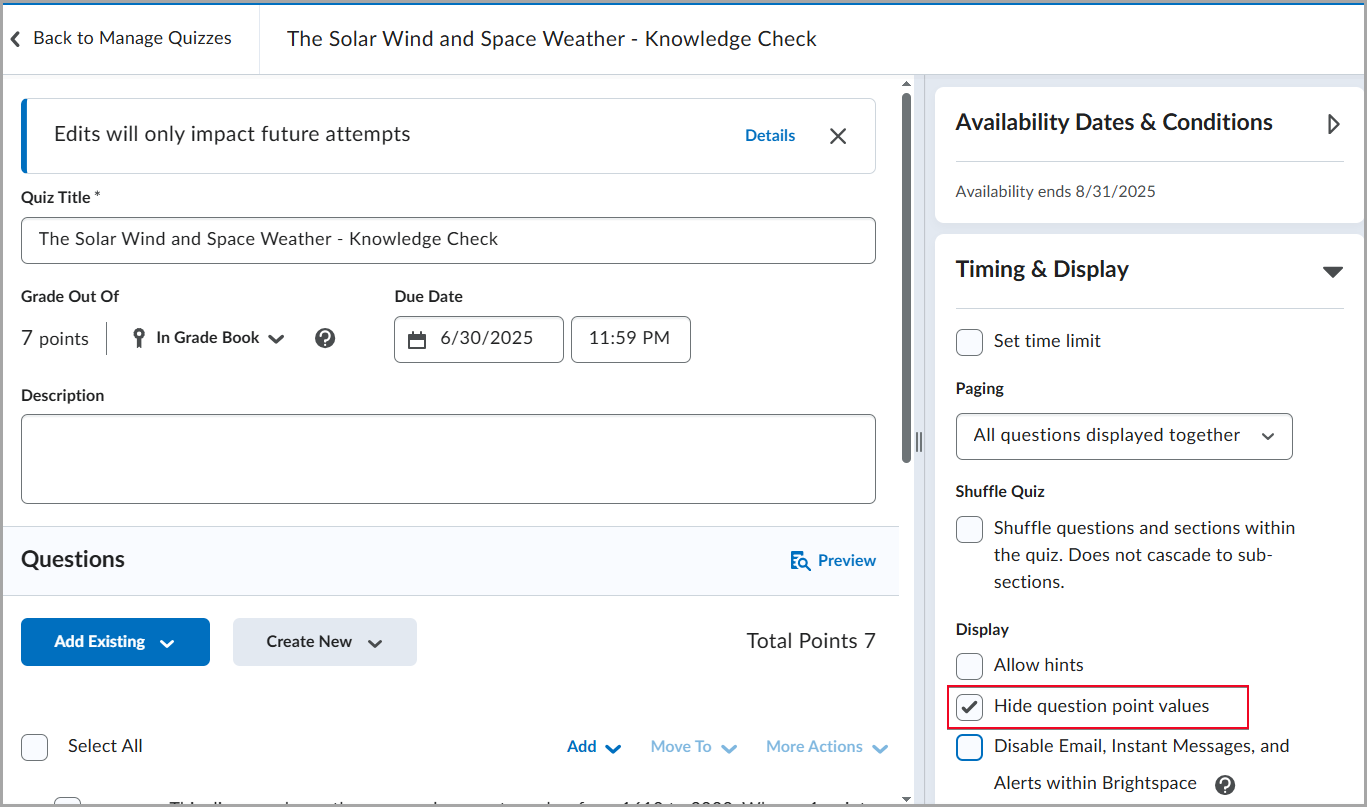
Previously, point values for quiz questions were always visible to students.
Quizzes – Improved visibility for insufficient question pools | Updated
With this release, instructors can now see a status indicator when a question pool has insufficient questions, allowing them to resolve the issue before students begin a quiz attempt.
If a quiz attempts to draw more questions than are available in a question pool (for example, 12 questions requested but only 10 available), the interface now displays a warning indicator.
This update adds visual warnings in the following areas:
- The Grading view: If students have already completed a quiz containing an affected pool, messaging displays in the grading evaluation experience.
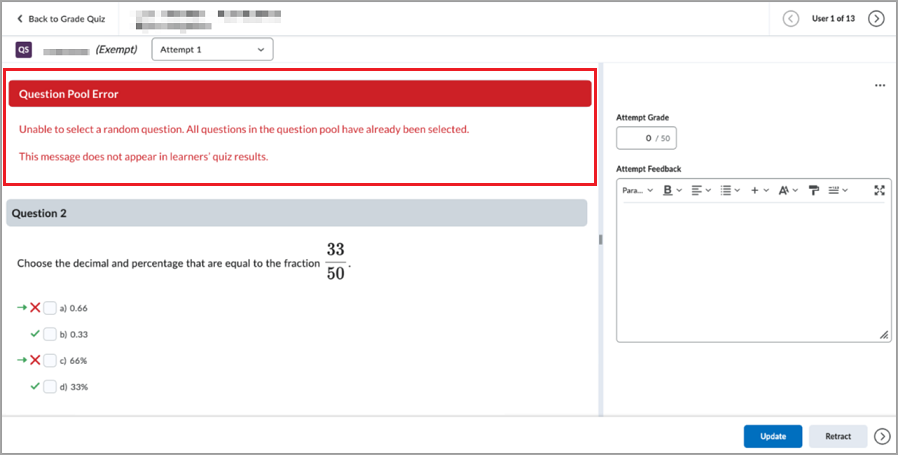
Figure: When grading a quiz, an error message appears indicating the question pool is exhausted. - The Manage Quizzes page: A status indicator flags quizzes with insufficient question pools.
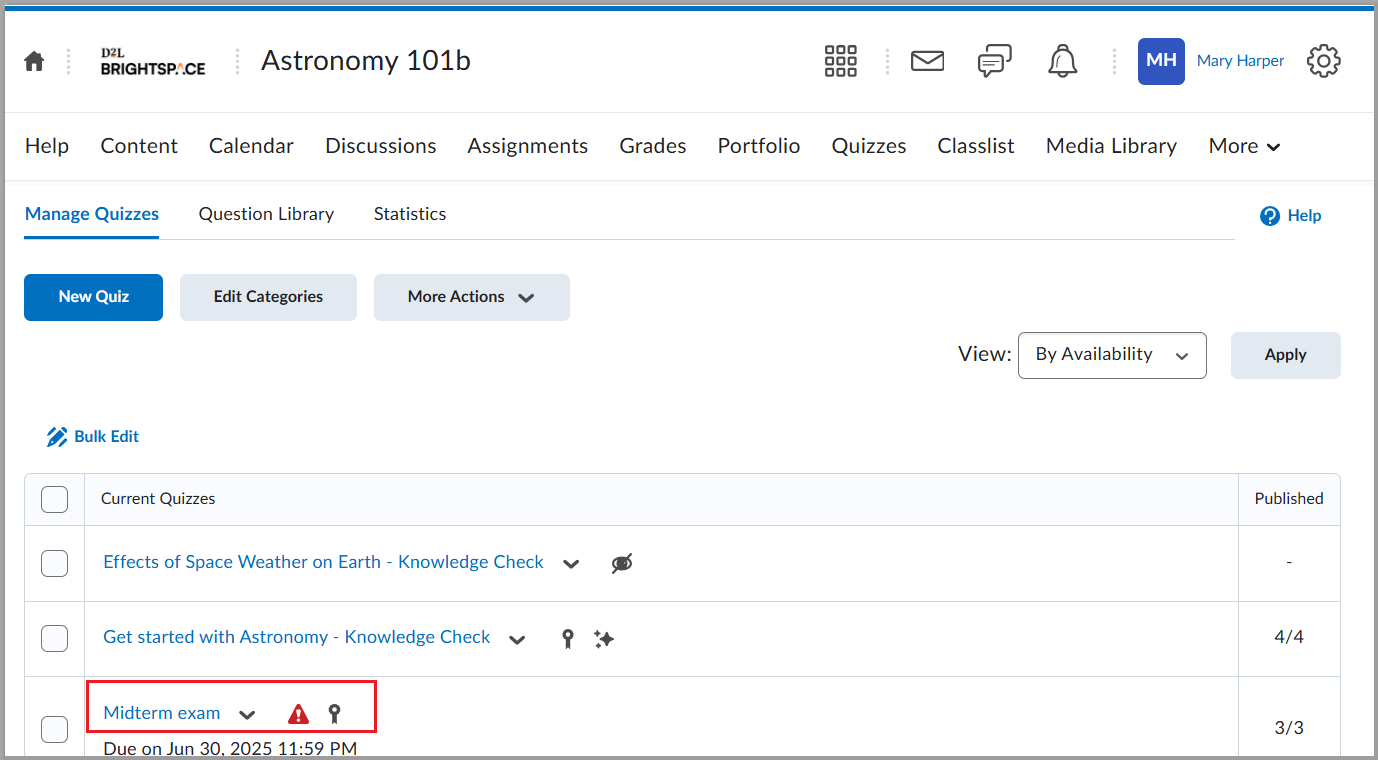
- The Edit Quiz page (Quiz Builder): A warning icon appears directly on the affected question pool.
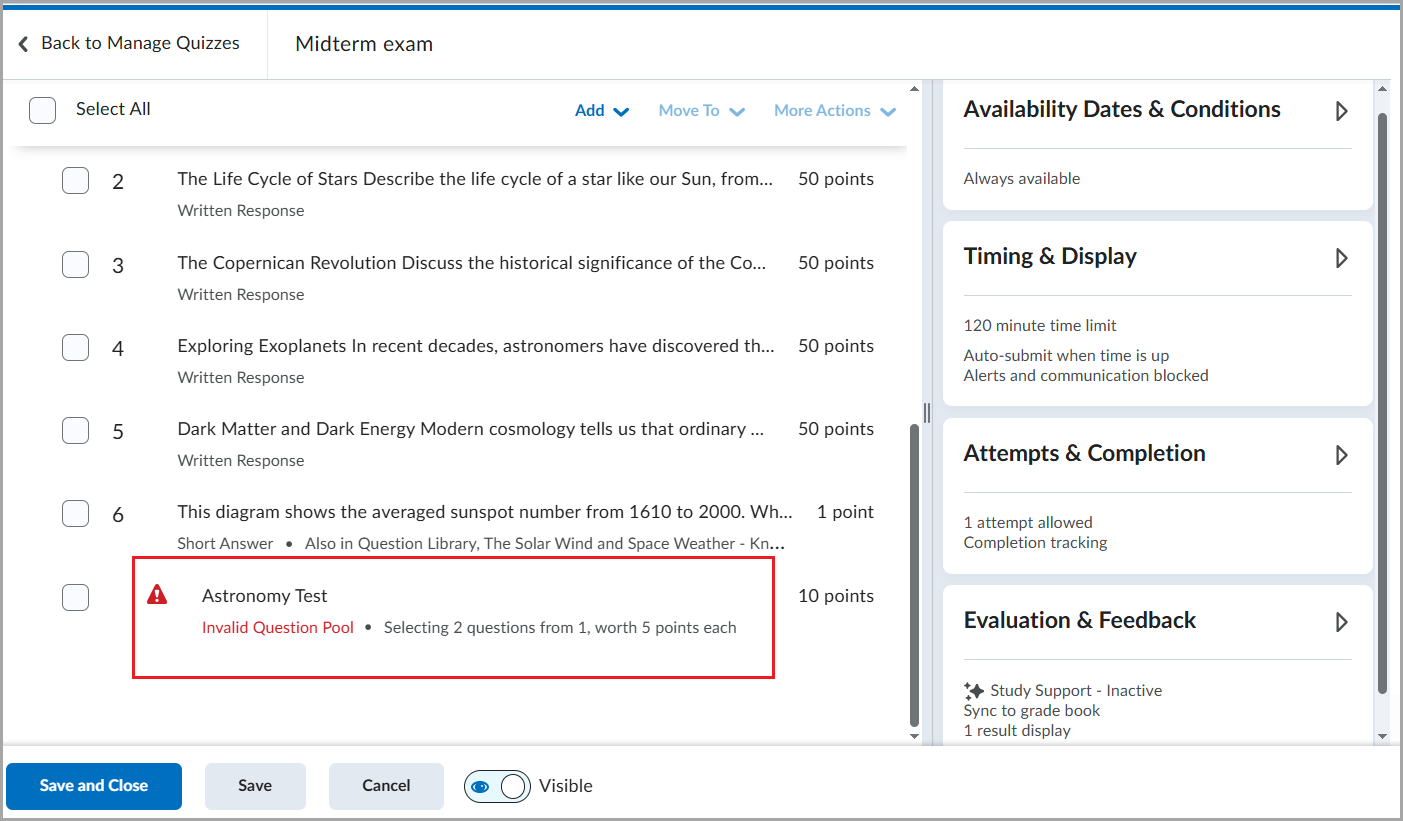 Figure: Figure: The Edit Quiz page displays a Question Pool with an error state, labeled Invalid Question Pool.
 - The Course Import and Course Copy workflows: Validation now prevents importing or copying pools with an insufficient number of questions.
Previously, no visual indicators identified when question pools contained too few questions, and these could be imported or copied without warning.
MyCourses – Improved keyboard accessibility for tab navigation | Updated
To improve accessibility and consistent experiences for users navigating MyCourses with a keyboard, the tab groups on some pages have been updated. When navigating with a keyboard, pressing Space or Enter on the keyboard now selects a focused tab. Previously, tabs auto-selected when navigated to via keyboard.
The following pages contain tabs that are affected by this update:
- Additional Details tabs in the Content tool
- Attempt Log tabs in the Quizzes tool
- All tabs in the Terms and Conditions tool
To navigate among tabs in MyCourses:
- Press Tab or arrow keys to move focus between tabs.
- Press Space or Enter on the keyboard to activate the focused tab.
 Note: This update does not affect interactions with tabs when using a mouse or touchscreen. Note: This update does not affect interactions with tabs when using a mouse or touchscreen. |
This change is based on guidance from W3 best practices. To learn more, refer to the ARIA Authoring Practices Guide Tabs Pattern page for more information.


MyCourses – Tooltip text repositioning | Updated
To improve the visual experience across MyCourses, new positioning logic is applied to tooltip text that ensures the text wraps in the text box and remains visible on the screen. This update is visual only; there are no changes to the tooltip text. The majority of tooltips in MyCourses are not changed by this update.

Need to learn more?
Need to learn more about MyCourses, Zoom, Microsoft software, Accessibility, or Classroom Technology?
Check the IT Workshop Schedule – OR- Schedule a 1-1 Consultation