
New updates are coming to MyCourses later this week! See below for details, and please contact helpdesk@ggc.edu if you encounter any problems or have questions.
MyCourses
HTML Editor – Additional heading options | Updated
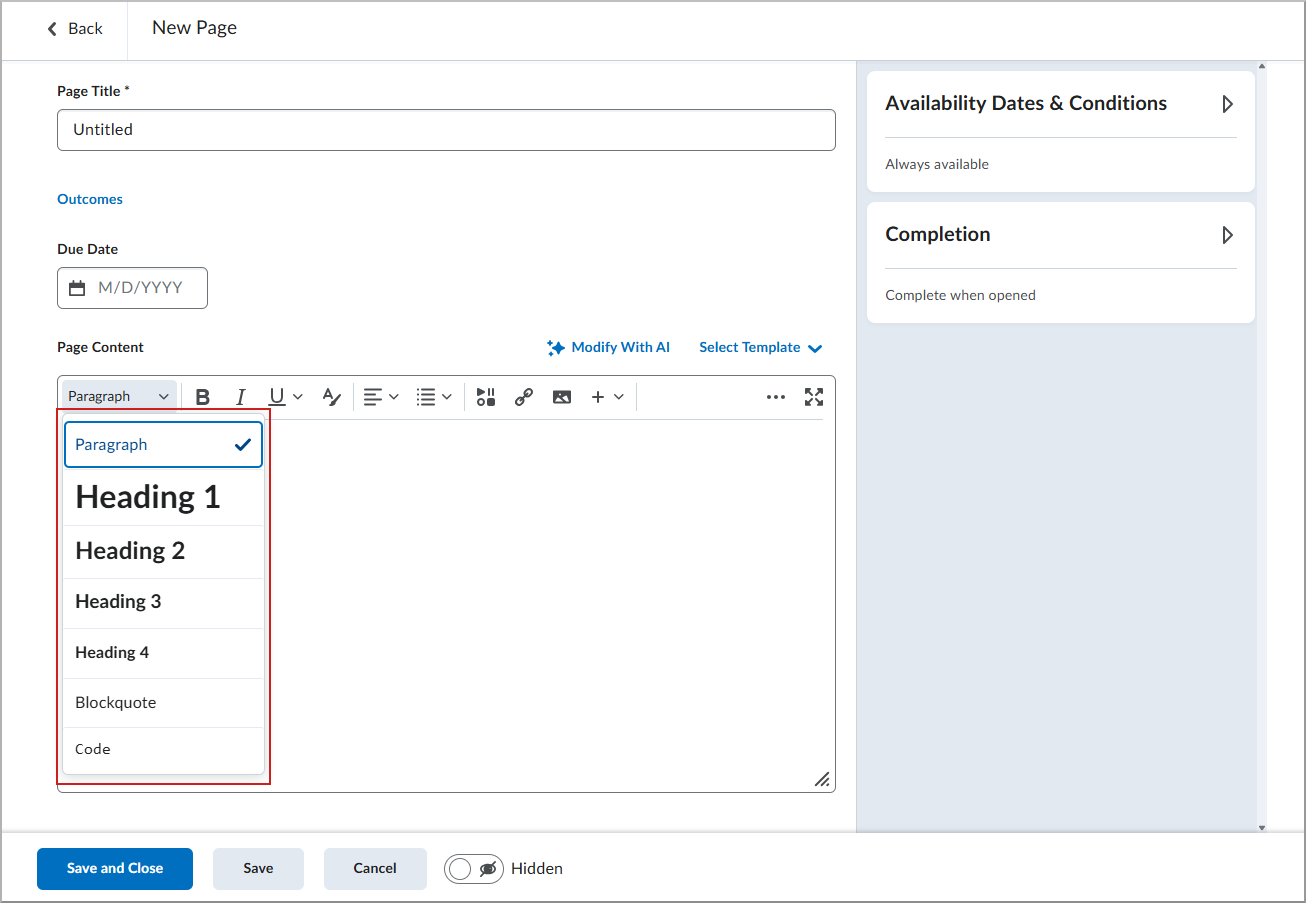
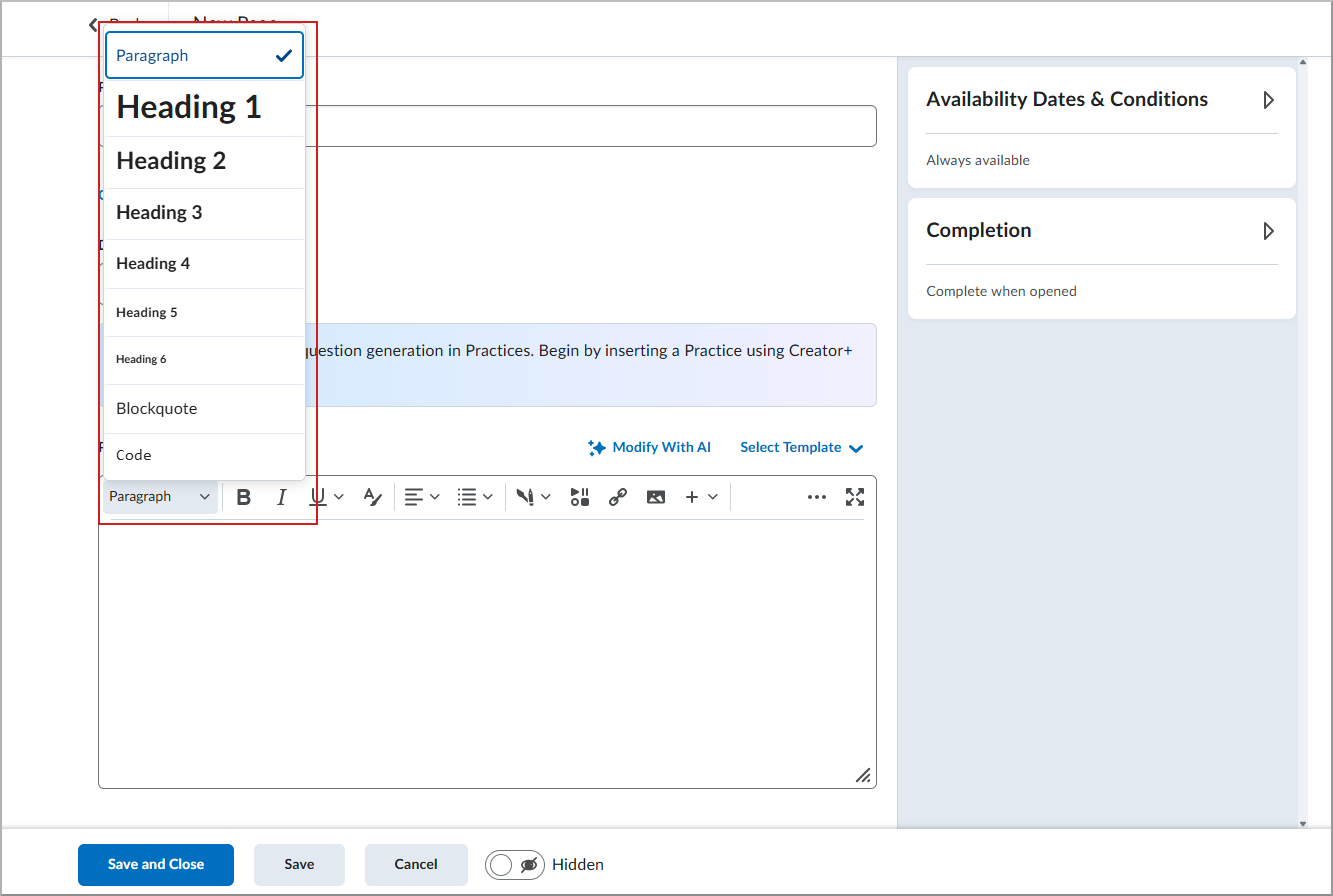
To make creating accessible content easier, the Brightspace Editor now includes Heading 5 and Heading 6 in the Format drop-down menu. Previously, the menu only displayed Heading 1 through Heading 4, and instructors had to use keyboard shortcuts or the Source Code editor to apply the additional heading levels. This update ensures that instructors can easily apply all standard heading levels directly from the Format menu, supporting compliance with accessibility standards.
Groups – Bulk edit group names and codes | Updated
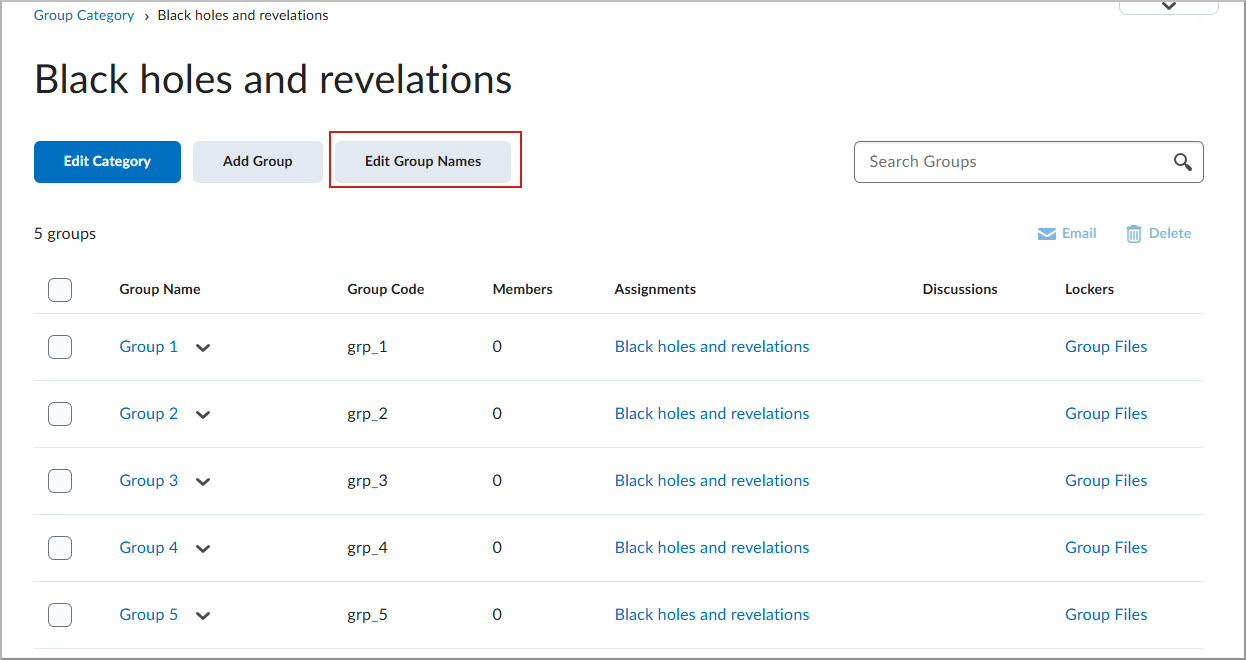
To improve efficiency when managing large numbers of groups, the new Manage Groups experience now allows instructors to bulk edit group names and codes within a category. Previously, instructors had to select each group individually to edit its details. Instructors can now click Edit Group Names to update the names and codes for one, multiple, or all groups from a single interface, saving time and reducing administrative effort.

New Content Experience – Assessable activities are only displayed inline | Updated
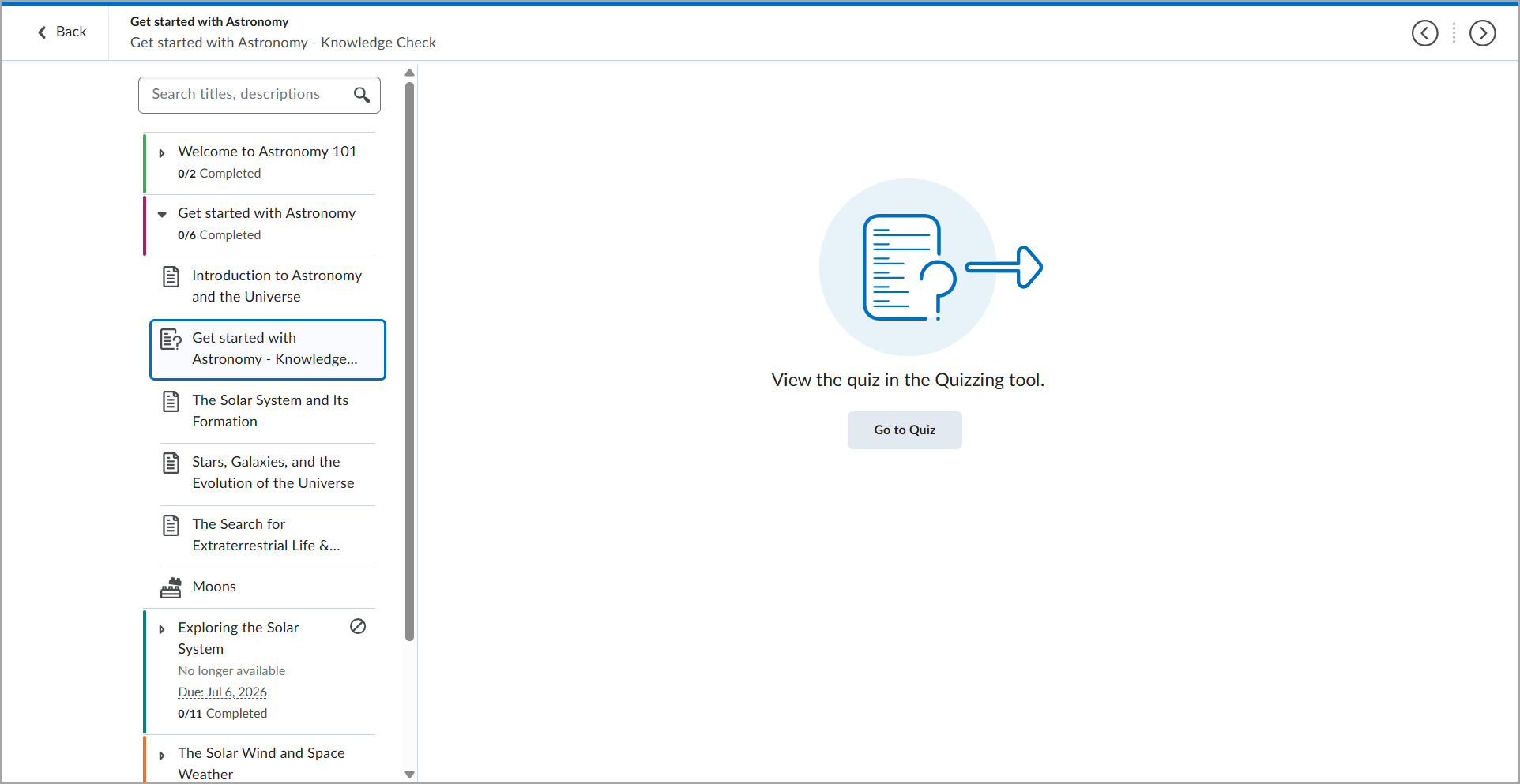
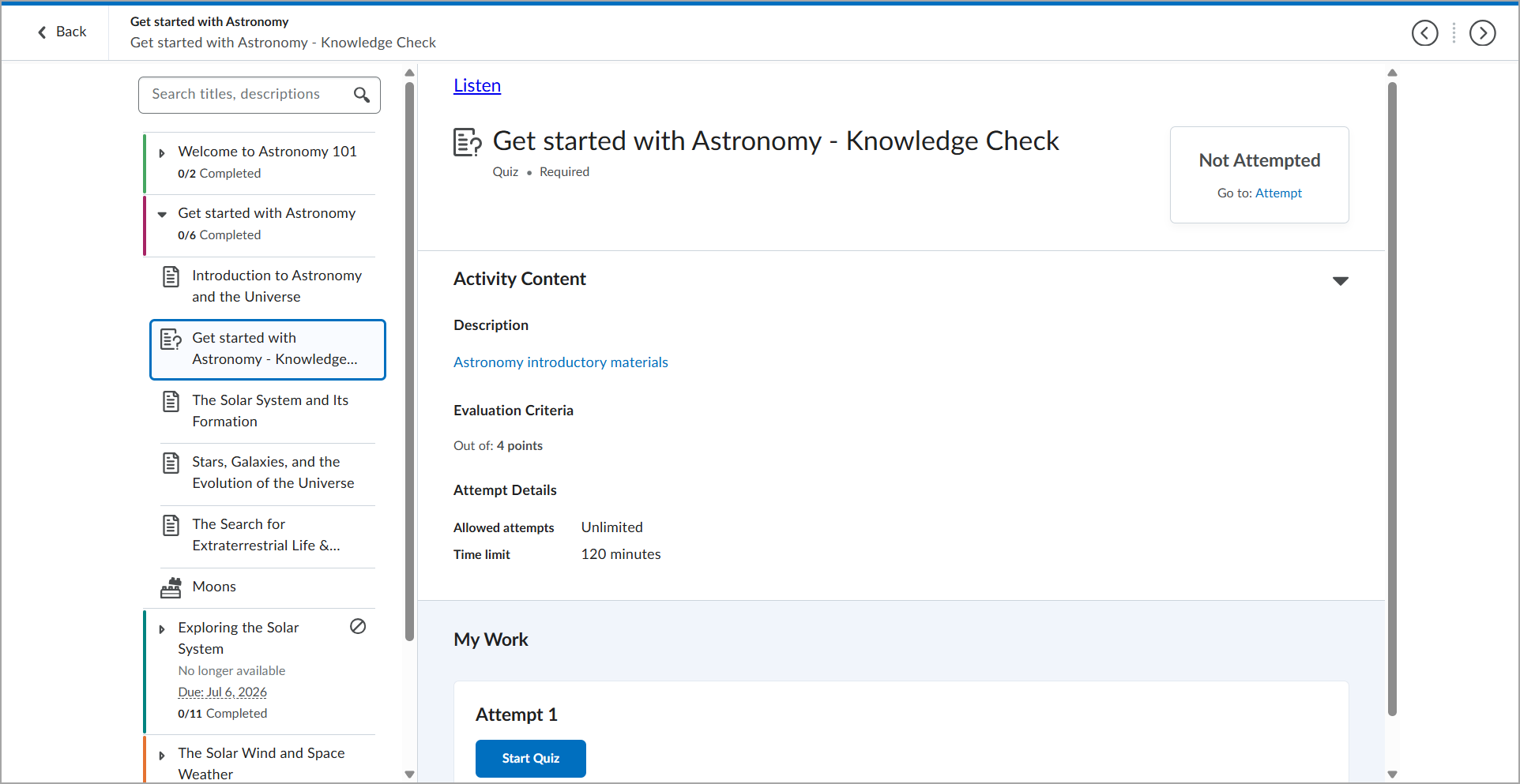
Assessable activities, including Assignments, Quizzes, Discussions, and instructor LTI links, now display inline by default in the New Content Experience. This change provides students with a consistent, embedded experience when accessing assessable course activities.
Before:
After:
MyCourses – Removing the Preview as a Student and the View as Student options | Removed
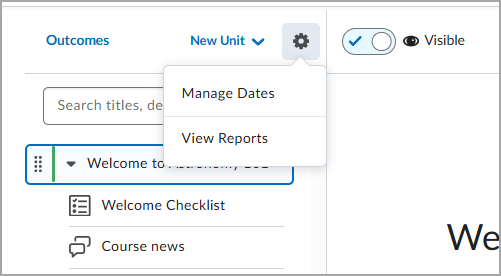
To provide a more accurate representation of the student experience, the Preview as a Student and View as Student options are removed from MyCourses New Content Experience and the global account menu.
Previously, the Preview as a Student option was available in Content for courses where NCE was enabled, but it did not accurately reflect the student experience. This preview had several limitations. For example, it did not correctly apply availability dates and release conditions, and it displayed the instructor view instead of the student view for Assignments, Quizzes, and Discussions.
Before:
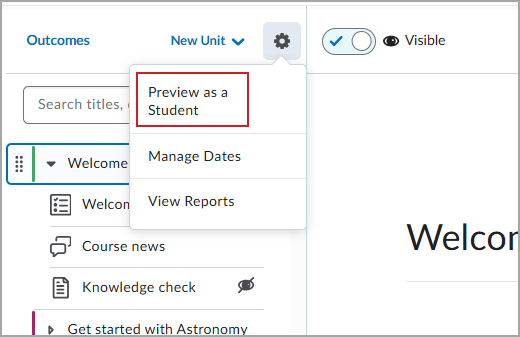
After:
Previously, the View as Student option appeared in the global toolbar under the account menu, but it did not accurately reflect the student experience. This view had several limitations, including the inability to interact with assessable activities in the course.
Before:
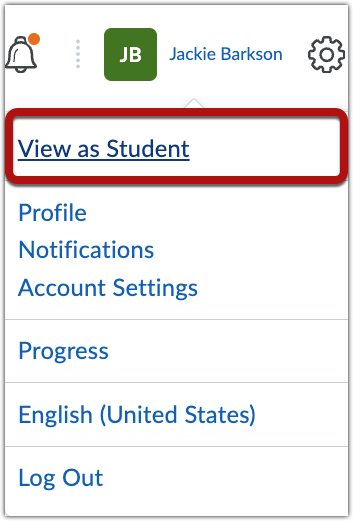
After:

To view your course from a student’s perspective, use the following supported option:
- Impersonate: Impersonate the Demo Student in the Classlist to experience the course exactly as a student does across all supported tools.
Impersonation provides a more accurate representation of the student experience than the previous Preview as a Student or View as Student options.
Work To Do widget – Dismiss overdue items | Updated
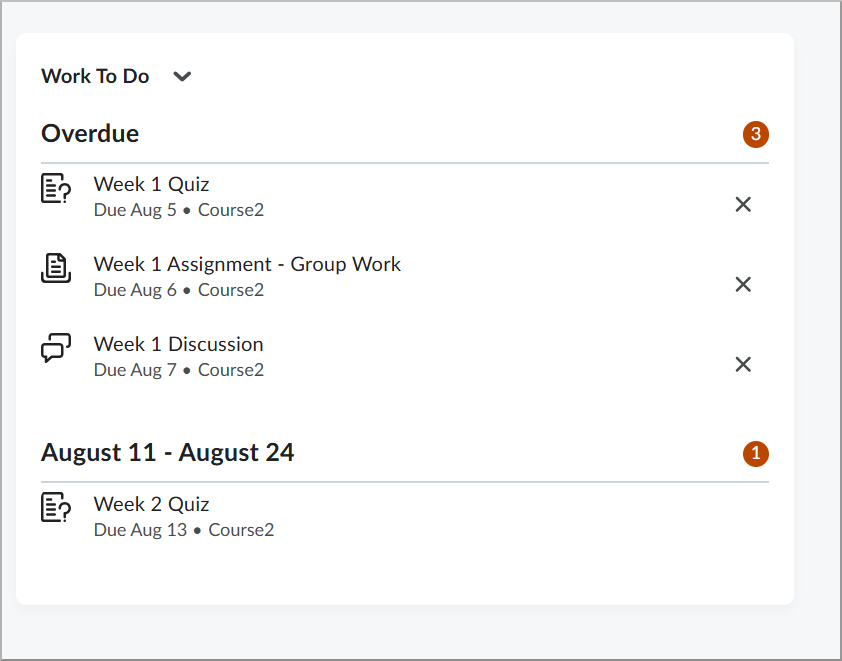
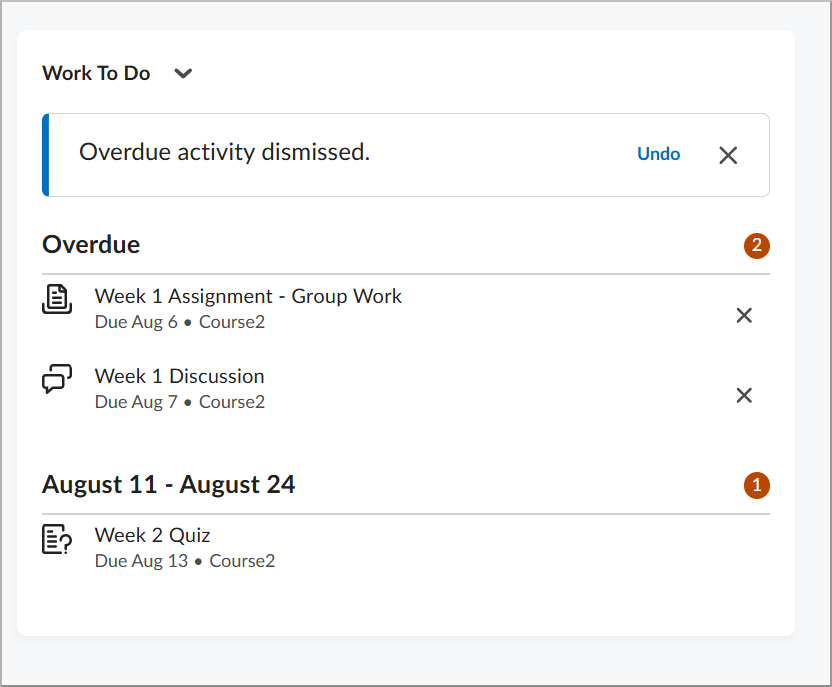
To help students better manage their workload, the Work To Do widget now allows users to dismiss overdue activities. Previously, overdue items remained on the list until completed, or their due dates were removed, potentially cluttering lists for courses without end dates or those that remained active after completion.
Now, students with the appropriate permission can select the X icon next to an overdue activity to remove it from their view. After dismissing an activity, an alert appears briefly with an Undo option, allowing students to restore the activity if it was dismissed by mistake.
Need to learn more?
Need to learn more about MyCourses, Zoom, Microsoft software, Accessibility, or Classroom Technology?
Check the IT Workshop Schedule – OR- Schedule a 1-1 Consultation