
New updates are available for MyCourses! See below for details, and please contact helpdesk@ggc.edu if you encounter any problems or have questions.
MyCourses
Announcements – Images appear in emailed Announcement notifications | Updated
When instructors create an announcement (or administrators create a global announcement) that includes in-line images, any instant notification or emailed copy of that announcement now includes those images in the body of the email. Previously, only images added as file attachments to the announcement were included with the notification email, and in-line images were not shown.
Note: This update applies only to images. Videos embedded in announcements are not included in emailed announcement notifications.
This change ensures that students who rely on email notifications can see the same visual content that appears in the original announcement, helping them notice important information that may have previously been missed when images were omitted from the email version.
Assignments, Quick Eval – Improved usability for assistive technology users | Updated
As part of D2L’s ongoing commitment to accessibility and inclusive design, with this release, we have made several updates to enhance the experience for users relying on assistive technologies.
- The Submissions page in Assignments: The dropdown menus for submissions, feedback, and results per page now include accessible labels. Previously, these menus only had titles, which some screen readers could miss. This change ensures that all users can access and understand these controls.
- The Submissions view in Quick Eval: The number of search results returned is now read aloud by assistive technology, making it easier for users to understand the scope of their results.

- The Activities view in Quick Eval: The status messages that show the number of search results are now accessible to screen readers, improving clarity and usability for all users.

Awards – Increased flexibility in Awards text fields | Updated
To improve localization and language flexibility, administrators and instructors can now personalize certificates in the Awards tool using new replacement strings. These strings populate dates in a short YYYY-MM-DD format, which provides more consistent rendering across multilingual certificate templates.
Previously, existing date replacement strings used long-form formats. This caused issues when certificates were created in one language and the date string rendered in another, often breaking formatting. The new short-form format resolves this issue.
The following replacement strings are now available:
- {CourseStartDateShort}: Inserts the course start date.
- {CourseEndDateShort}: Inserts the course end date.
- {AwardDateShort}: Inserts the award issue date.
- {AwardExpiryDateShort}: Inserts the award expiry date.
LTI – Students can now accept processor EULAs for assignments accessed through Lessons content topics | Updated
| Important: This feature is only available to clients using the New Content Experience (NCE). Students submitting assignments through the Classic Content experience do not see end-user license agreement (EULA) links for third-party asset processors. |
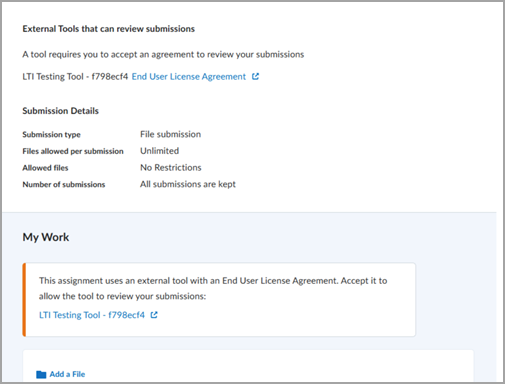
Students can now access the end-user license agreement (EULA) for third-party asset processors when submitting assignments that are accessed through the Lessons tool in the New Content Experience. Building on functionality released in November 2025, EULA links were only shown when accessing assignments directly through the Assignments tool or when activities were set to not render inline by the LMS administrator.
With this update, students see the processor’s EULA in additional locations when accessing an assignment through Lessons:
- In the assignment’s Instructions section.
- As an inline alert when submitting an assignment.
- In a reminder modal, if they attempt to submit without having accepted or declined the EULA.
Note: Students only need to accept the EULA once per third-party processing tool. If the third-party tool updates its EULA, students are prompted to accept the new agreement.
Student access to processing reports generated by external tools depends on each processor’s configuration. In general, students see report details only when allowed by the external tool and when instructors provide feedback on the submission. Instructors continue to access processing reports in Consistent Evaluation.

Quizzes – Single Session Quiz | New
Instructors can now require students to complete a quiz within a single Brightspace login session, helping maintain academic integrity. When this setting is enabled, students cannot resume the quiz using another browser session. For example, if a student starts a quiz on a laptop, they cannot continue the quiz on another device, such as a smartphone or tablet.
When this configuration variable is enabled, instructors can navigate to the Availability Dates & Conditions section while creating or editing a quiz and select Lock each attempt to a single login session.
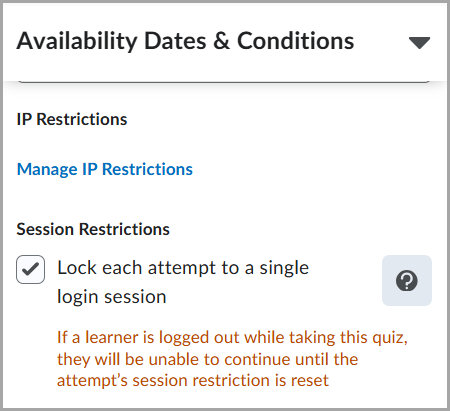
Note: This setting only restricts access to the quiz. It does not prevent students from having multiple active sessions in Brightspace.
Need to learn more?
Need to learn more about MyCourses, Zoom, Microsoft software, Accessibility, or Classroom Technology?
Check the IT Workshop Schedule – OR- Schedule a 1-1 Consultation