
New updates are available for MyCourses! See below for details, and please contact helpdesk@ggc.edu if you encounter any problems or have questions.
MyCourses
Quizzes – Improvements to the Quizzes evaluation | Updated
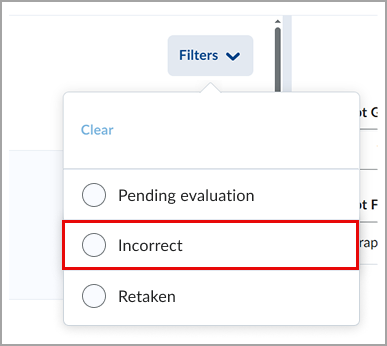
The quiz evaluation experience now includes an Incorrect filter that lets instructors quickly view answers marked incorrect. In addition, feedback fields automatically expand as needed, providing more space to review and enter feedback.
Instructors can now filter the quiz questions to review only the questions a student answered incorrectly. This enhancement helps instructors identify trends and determine whether updates to questions or instructional materials are needed.
Previously, the available filters were Pending Evaluation and Retaken questions only. With this update, the new Incorrect filter displays only questions marked incorrect.
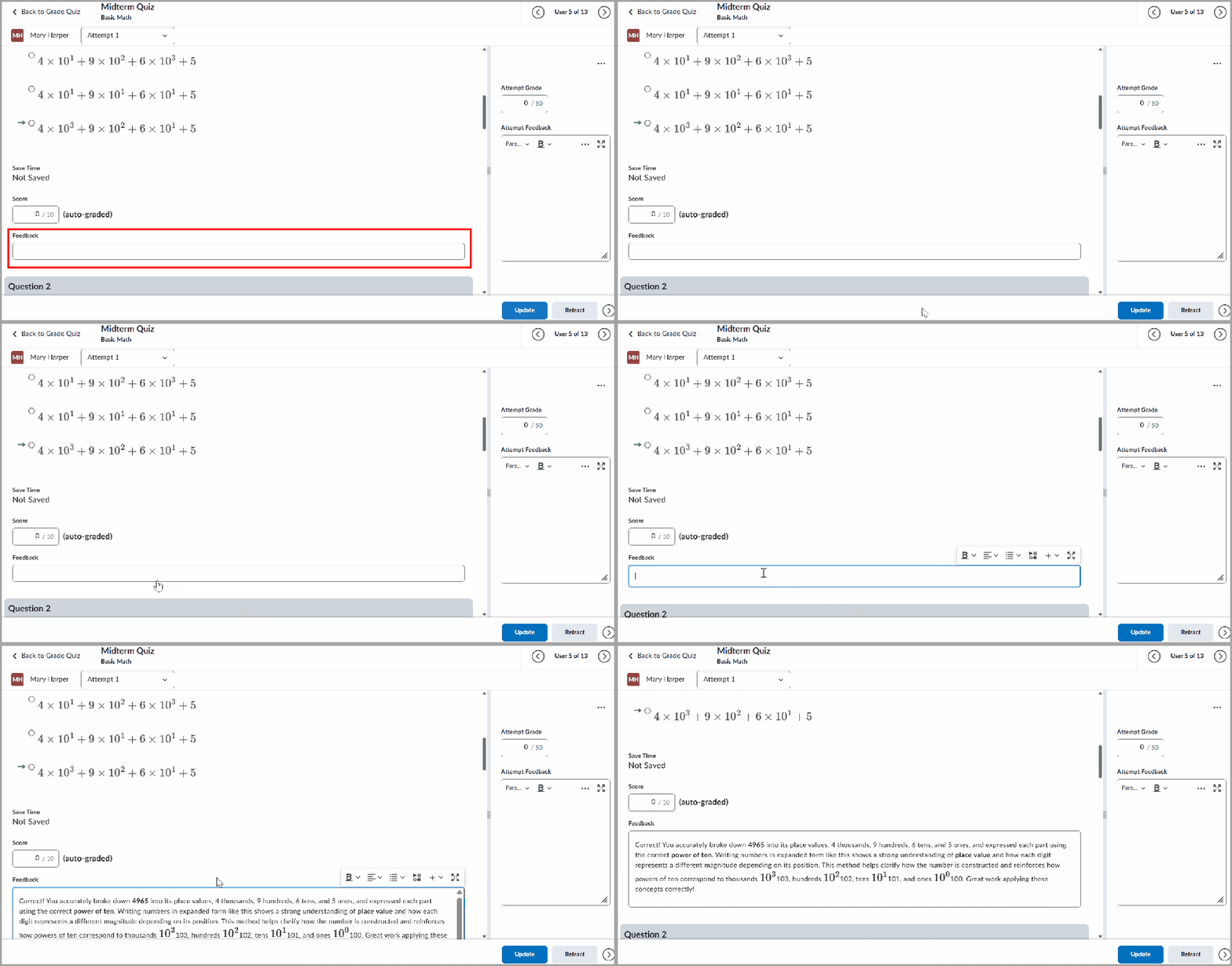
Additionally, feedback fields for questions are now displayed as a single line and automatically expand when instructors enter additional comments. Previously, the Feedback field for each question displayed several lines even when no feedback was entered, requiring users to scroll unnecessarily.
Respondus Lockdown Browser + Monitor
Second Camera for Respondus Monitor
Respondus Monitor now supports a second camera, providing increased visibility of a student’s workspace during an online exam.
In addition to deterring the use of unapproved resources, a second camera enables more authentic forms of assessment:
- Record a science lab
- Show proficiency in a clinical procedure
- Show how equipment or tools are used
- Perform a hands-on demonstration
How it Works
Exam Setup
- Select either Webcam Only or Webcam + Screen from the Respondus Monitor settings.
- Locate the Second Camera option and select “Require students to use a second camera in addition to the webcam.” Instructions for students can be edited.
Post-exam Review
Instructors can view up to three videos synchronously with the proctoring results: frontal webcam, second camera, and screen recording. Click on a video to make it play in the larger window.
Need to learn more?
Need to learn more about MyCourses, Zoom, Microsoft software, Accessibility, or Classroom Technology?
Check the IT Workshop Schedule – OR- Schedule a 1-1 Consultation